
 By Anna Jessica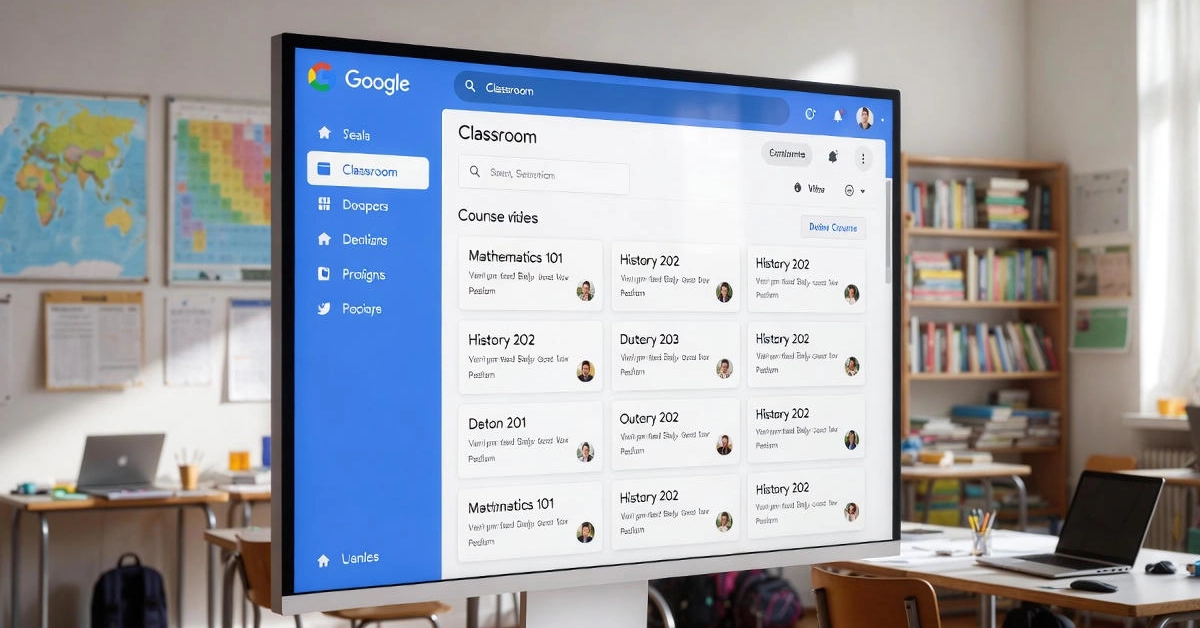
Think about the last time you tried juggling lesson plans, student questions, and a pile of assignments all at once. It’s like herding cats while walking a tightrope. That’s where Google Classroom steps in, making things a bit less chaotic for teachers and students. In this chatty guide, we’ll walk through what it is, how to get started, and all the fresh updates that make it shine in 2025. Whether you’re a teacher dipping your toes in or a parent helping out, you’ll find straightforward advice here.
Key Takeaways
- Google Classroom helps over 150 million folks worldwide handle classes, assignments, and chats in one spot, all tied into Google Workspace for Education.
- New AI bits like Gemini and NotebookLM let you whip up quizzes or study guides fast, cutting down on prep time.
- It’s free at its core, but watch for premium add-ons if you want fancy stuff like deeper analytics.
- Compared to tools like Canvas, it’s simpler for quick setups, though it might lock you into Google’s world.
- Tackle bugs head-on with easy fixes, like clearing your cache to speed up grading.
What Is Google Classroom?
Picture this: You’re a teacher starting the school year, and instead of drowning in paper, everything’s digital and easy to find. Google Classroom is basically a free online platform where educators create classes, hand out work, and keep track of progress. It fits right into blended learning, mixing in-person and online stuff, and boosts student engagement by letting kids turn in assignments from anywhere.
Launched back in 2014, it’s grown a ton, especially after the pandemic when schools went remote. By 2024, it had jumped from 40 million users to over 150 million, with folks in places like the U.S. using it in 60,000 schools. In 2025, it’s all about AI smarts, like helping teachers plan lessons quickly.
At its heart, it’s an LMS—learning management system—that connects with Google Drive for files and Meet for video calls. Teachers act as the boss, students join with codes, and admins handle the big picture for schools.
History and Evolution
Google Classroom kicked off as a simple tool for assignments, but it’s evolved big time. Remember 2020? When everyone scrambled online, it added features like originality checks to spot copied work. Fast forward to 2025, and we’re seeing over 150 updates, including AI for everything from grading to personalization.
Take a school district in California—they rolled it out district-wide and saw better student involvement because kids could collaborate on projects in real time. Stats show it holds about 9.36% of the LMS market, proving it’s a go-to for many.
Core Components
Here’s the breakdown in simple terms:
- The Stream: Like a class feed for posts, questions, and updates. Post a quick poll or share a link—keeps everyone in the loop.
- Classwork: Where you organize assignments, quizzes, and topics. Attach files from Drive or add rubrics for fair grading.
- People: Manages who’s in the class, invites guardians, and tracks progress. Handy for sending private notes.
These parts make it feel like a virtual classroom without the hassle.
How to Set Up Google Classroom
Setting up is straightforward, like signing up for an email. If you’re new, it might feel overwhelming at first, but stick with it—most folks get the hang in under 10 minutes.
Start by heading to classroom.google.com and logging in with a Google account. If your school uses Workspace for Education, it’ll sync up nicely. Create a class by clicking the plus sign, add a name, subject, and maybe a fun description to get kids excited.
Account Creation Steps
Let’s break it down step by step:
- Log in or make a free Google account if you don’t have one.
- Click “Create class” and fill in the details—name it something clear like “Math 101 – Fall 2025.”
- Share the class code with students; they join by entering it on their end.
- Tweak settings, like turning on guardian emails for parent updates.
Once set, you can start posting. A teacher friend of mine said this cut her setup time in half compared to old methods.
Admin Tools for Schools
For bigger setups, like a whole district, admins use tools to sync with systems like PowerSchool. This means rosters update automatically—no manual entry headaches.
Imagine rolling it out for 1,000 students: Use admin controls to set policies, like who can post. In 2025, new features will help guide focus, like blocking distractions during class time. It’s great for global schools, with support in many languages.
Key Features of Google Classroom
What makes it tick? The features are practical, saving time on the boring stuff so you can focus on teaching.
Assignments go out with due dates, and students submit right there—no lost papers. Grading is quick with comments and scores. Plus, it integrates with tools for more fun, like adding videos.
Assignment and Grading Tools
Creating an assignment? Pick “Classwork,” add a title, instructions, and points. Attach docs or links, set a due date, and boom—it’s posted.
Grading happens in one spot: See submissions, add feedback, and use rubrics for consistency. With 10 million daily Android users, many grade on the go. Tip: Save as a draft first to avoid mix-ups.
Collaboration Integrations
It plays nicely with Google Meet for live classes—start a video right from Classroom. But don’t stop there; link up with Quizlet for flashcards or Khan Academy for extra lessons.
For non-Google stuff, embed Boom Cards for games. A scenario: Your class is studying history—pull in a virtual tour link, and kids discuss in the Stream.
AI Innovations in 2025
2025 brought a wave of AI magic to Google Classroom, making it feel like you have a smart assistant. It’s all about saving time and tailoring lessons.
Gemini, Google’s AI, now helps in higher ed too, expanding from just teachers. It’s like having a co-teacher who never sleeps.
Gemini and NotebookLM
Gemini whips up quizzes or rubrics in seconds. Say you need a math quiz—type a prompt, and it generates questions with answers.
NotebookLM turns notes into study guides, even interactive ones. Example: A student struggling with science uploads notes, and it creates a podcast-style summary. Teachers say it cuts planning by hours.
Use “Gems” for custom AI helpers, like one for essay feedback. With LearnLM built in, it’s tuned for education.
Analytics and Insights
The dashboard shows who’s engaged—see views on posts or completion rates. Low-competition tip: Check the analytics dashboard for patterns, like which days kids log in most.
Stats from 2025 show boosts in productivity, with tools guiding focus. It’s like having data to tweak your teaching on the fly.
Pros, Cons, and Comparisons
Like any tool, Google Classroom has ups and downs. It’s free and easy, but might not suit everyone.
Pros: Quick setup, integrates with Google stuff, and AI makes it smart. Over 29,000 organizations use it for a reason.
Cons: Can be glitchy, like slow loads, and premium features cost extra. Some folks worry about data privacy.
Benefits and Challenges
Benefits in bullets:
- Boosts collaboration with real-time edits.
- Saves paper and time on grading.
- Mobile apps have 27.98 million Android downloads for on-the-go access.
Challenges:
- Bugs like missing text in posts.
- Relies on internet, tough for spotty connections.
- Locked into Google, which might not mix well with other systems.
Vs. Alternatives
Canvas offers more customization, like building full courses, but it’s often paid and steeper to learn. Great if you need advanced tracking.
Microsoft Teams shines in video chats and Office integration, but grading feels clunkier than Classroom’s.
Schoology is similar but has stronger parent portals. Pick based on your needs—if you’re already in Google, stick with Classroom for simplicity.
Troubleshooting Common Issues
Ever had an assignment vanish or grading drag on? You’re not alone—reviews show mixed feelings, with some 2.2 out of 5 stars on glitches.
But fixes exist. For slow grading, try the mobile app or switch browsers.
Usability Fixes
Common glitch: Missing words in posts? Repost or edit carefully.
Tip: Clear your app cache weekly to speed things up. If the grades tab glitches, log out and back in.
For multi-accounts, use profiles to switch easily—no more confusion.
Privacy and Accessibility
Privacy matters—set up FERPA configs in settings to control data.
For accessibility, enable offline modes via Drive: Download materials ahead. In low-income spots, pair with Chromebooks for equity.
Address bias in AI by reviewing outputs. Parents, check guardian summaries for involvement.
Conclusion: Is Google Classroom Worth Using in 2025?
Absolutely. Google Classroom remains one of the simplest, smartest, and most affordable learning platforms available today. With AI upgrades like Gemini and NotebookLM, faster grading, better analytics, and improved accessibility tools, it works beautifully for teachers, students, and even parents. It’s not perfect — glitches still happen, and internet access matters — but for most schools, it’s the most practical way to run blended or digital learning smoothly in 2025. If you want a platform that saves time, boosts engagement, and keeps everything organized, Google Classroom still leads the pack.